
My .NET MAUI App Meets the iPhone Duo: Ugly, Crash, Fix, Unfold
This article is more than two years old. Some details may have changed, so check the current documentation before applying them.
Apple’s first foldable is here. The iPhone Duo opens like a book: a 5.4-inch outer display when folded, a 7.6-inch inner display when open. And iOS does something it has never done on an iPhone before: in most poses, it moves the status bar and the tab bar into a vertical rail on the side of the screen.
So I wondered: what happens to an existing .NET MAUI app on this thing? Does it just work? Does it look weird? Does it explode? (Maybe the answer is: ‘yes’, so keep reading.)
Here’s the plan:
- Start from a baseline: an existing .NET MAUI app, built with Xcode 26.6.
- Install Xcode 27.1 next to it, and run that existing app on the iPhone Duo simulator without touching it.
- Rebuild the same code with the new toolchain.
- Fix whatever breaks.
- Admire the result on the Duo.
Every step is a tag in the repo, so you can follow along or check out any stage: baseline, baseline-on-duo, crash and scenes.
The complete PoC and its tagged stages are on GitHub.
The baseline: an existing app
I keep a spare Mac for experiments like this, so my daily dev machine stays out of harm’s way. Its environment is my baseline. Think of it as “the toolchain your app was last released with”:
| Component | Version |
|---|---|
| macOS | Tahoe 26.7.2 |
| Xcode | 26.6 |
| .NET SDK | 10.0.403 |
| Workload set | 10.0.401 (iOS 26.5.10318, MAUI 10.0.20) |
(Welcome to .NET versioning bingo)
In that environment I built a plain .NET MAUI app from the standard template, called IphoneDuo-PoC. A quick look in Platforms/iOS: AppDelegate.cs, Info.plist, Program.cs. No SceneDelegate.cs. Remember that.
In Apple’s demos, the TabBar moves into a vertical rail on the iPhone Duo. I added one to see how my app would handle it.
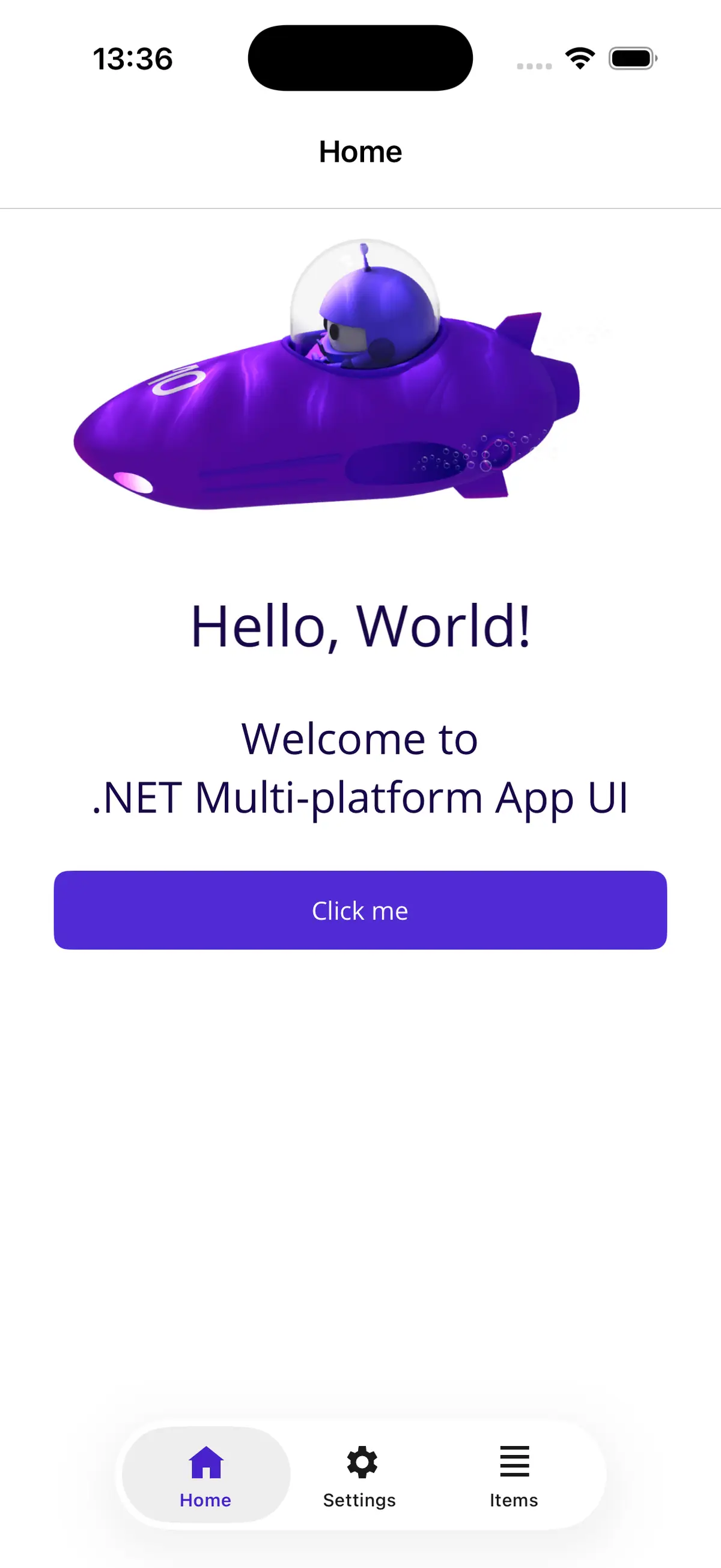
Once the app is built, I copied the generated .app bundle to a dedicated folder for later installation on the Duo simulator.
The full environment info lives in docs/baseline/envinfo.md. Tag: baseline.
Step 1: Xcode 27.1 joins the party
To test on the Duo, I need Xcode 27.1: the iPhone Duo simulator and the Duo-specific APIs arrived with the iOS 27.1 SDK. I also like keeping multiple Xcode versions installed side by side, so I can switch the active version whenever I need to test something. Xcodes makes that easy.
Tip: Xcodes, the app you didn’t know you needed
If you’ve ever downloaded a 10 GB .xip from the Apple developer site, waited for it to expand, renamed it and fiddled with xcode-select: stop. Meet Xcodes.
Xcodes lists every Xcode version Apple has published, installs them side by side (Xcode-26.6.0.app, Xcode-27.1.0.app, …) and switches between them with one Make Active click. It can also install simulator runtimes. Honestly, it’s one of those tools you install once and then wonder how you ever lived without it.
Sign in with your Apple ID, install Xcode 27.1, click Make Active, and finish the installation:
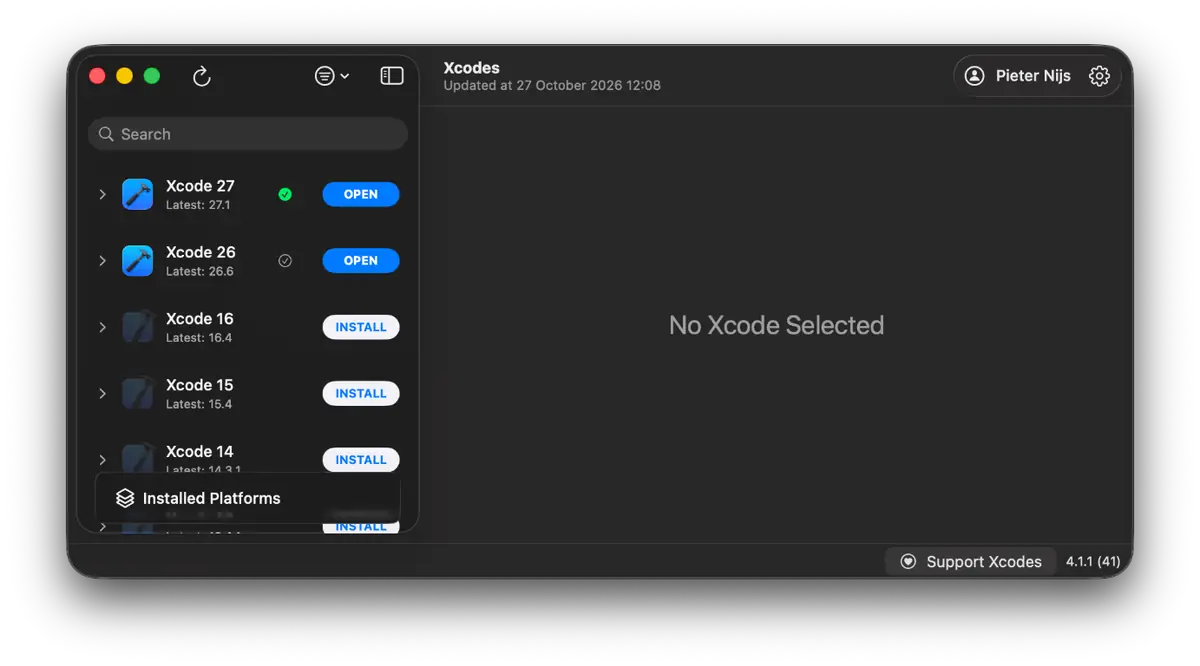
One caveat: Xcode 27.1 needs macOS 26.6 or later, and Xcode 26.x doesn’t run on macOS 27. If you want both side by side, stay on the latest Tahoe for now.
Device Hub and the Duo simulator
On first launch, Xcode asks you to install the iOS 27.1 simulator runtime. If you skip it, install it later via Xcode → Settings → Components. Then say hello to Device Hub (Xcode → Open Developer Tool → Device Hub), where you can launch and interact with simulators in Xcode 27. For the iPhone Duo it shows a 3D device that you can fold to any angle and rotate. Yes, I spent way too long folding and unfolding it.
Step 2: your existing app on the Duo
Here’s a question every app owner will ask this month: “What does my current App Store build look like on the new foldable?” You don’t need a Duo to find out. You need the baseline binary, iPhone Duo simulator and one command.
First, find the identifier of the iPhone Duo simulator:
xcrun simctl list devices | grep -i "iPhone Duo"Now install the saved build on the running Duo simulator, without rebuilding anything:
xcrun simctl install <device-identifier> ~/DuoPoc-builds/baseline-xcode26.appThen tap the app icon in the simulator to launch it.
This is how your existing app will look on the iPhone Duo if you don’t ship an update. It’s the binary your users already have, built with the old SDK, running on the new device.
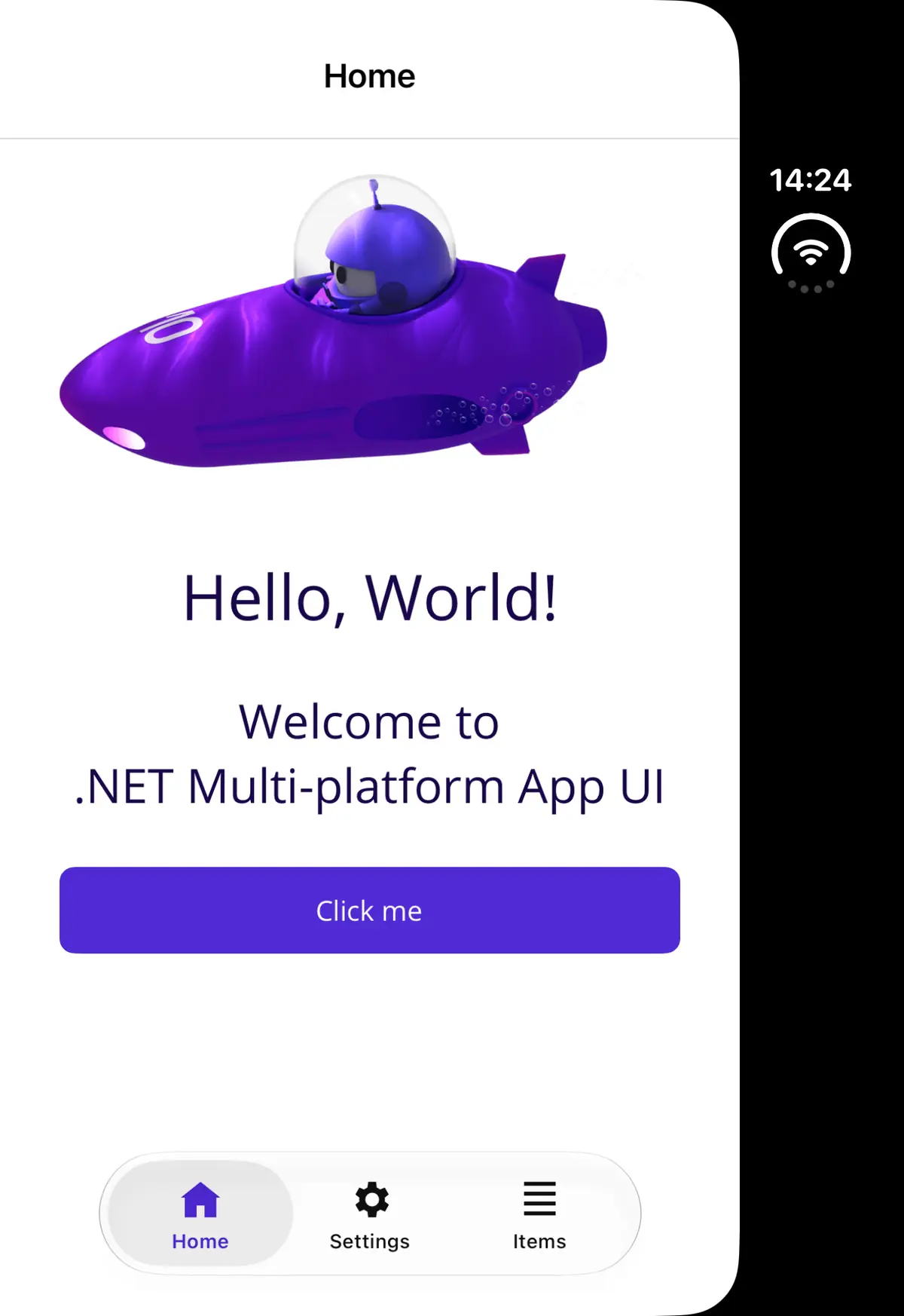
Open the Duo, and the compatibility box looks a lot like an iPhone app running on an iPad: a portrait-sized app centered in the display, with black space around it.
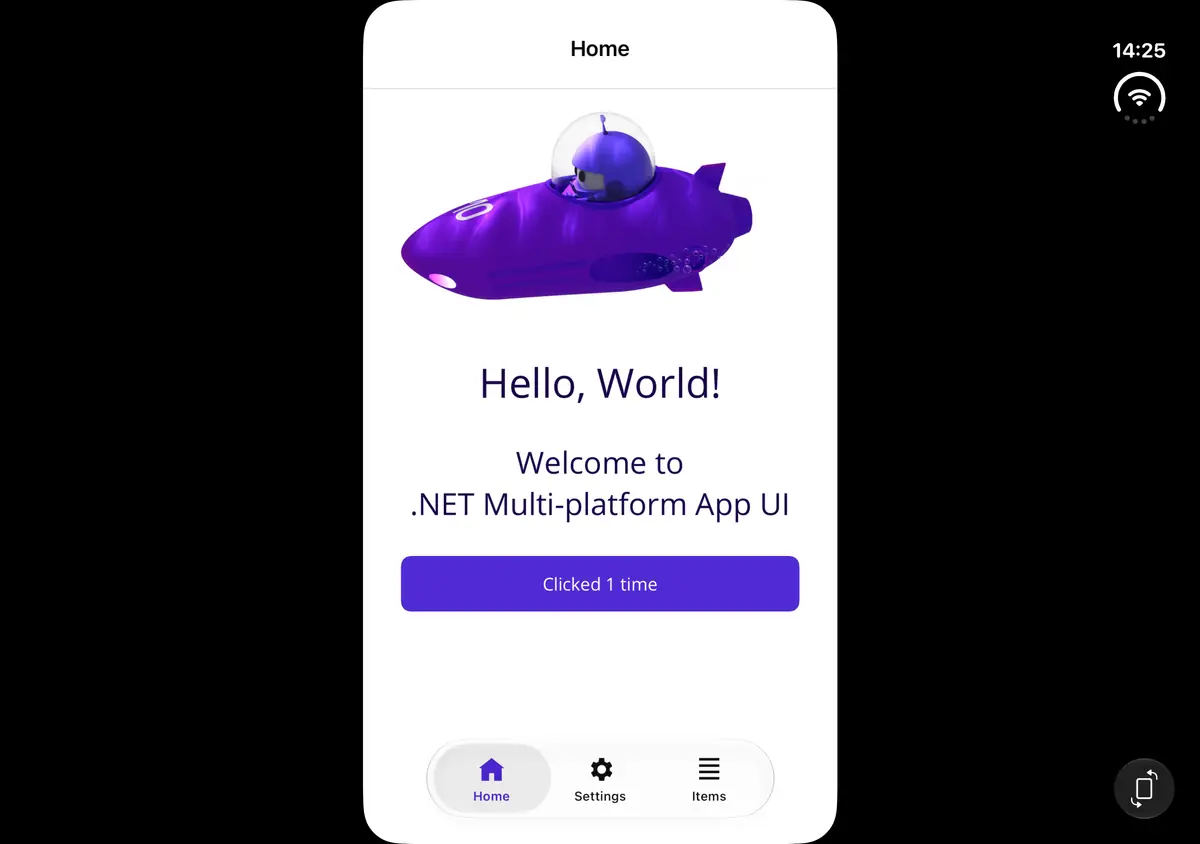
It starts, but let’s be honest: it’s ugly. The app doesn’t use the whole display. iOS runs it in a compatibility box, with a black band next to it where the status bar gets its own column. Inside that box, nothing has changed: the title is centred at the top and the tab bar sits at the bottom, exactly like on a regular iPhone. It works, but it clearly looks like an app that wasn’t made for this device.
That it starts at all is no accident. Apple’s new requirement (more on that in a minute) is only checked for apps built with the new SDK. Binaries built with Xcode 26 keep running.
Tag: baseline-on-duo. In docs/baseline-duo/envinfo.md I noted that the build itself didn’t change, only the platform it runs on: iOS 27.1.
Step 3: new Xcode, new workloads
Xcode 27.1 needs matching .NET workloads. According to the dotnet/macios release notes, that’s workload set 10.0.402.1.
sudo dotnet workload update --version 10.0.402.1Step 4: rebuild and… ooops
Same code. Not a single change. Just a rebuild with the new toolchain. In VS Code: delete bin and obj first (cached binaries can fool you), restart VS Code so it picks up the new workloads, pick the iPhone Duo simulator as target, and hit Run.
The build succeeds. Zero warnings. The splash screen appears. And then… the app is gone. Back to the home screen.
And VS Code? Totally relaxed about it:
The program 'IphoneDuo-PoC.dll' has exited with code 0 (0x0).Exit code 0. As if the app politely decided to call it a day. No exception, no stack trace, nothing. A closer look at the debug window reveals more details:
IphoneDuo-PoC[54106:471718] failure in void _UIApplicationEvaluateRuntimeIssueForNoSceneLifecycleAdoption(void)_block_invoke (UIApplication_RuntimeIssues.m:106) : Application failed to launch: UIScene life cycle is required for apps built with this SDK. See "Transitioning to the UIKit scene-based life cycle" in the UIKit documentation for more information on migration.That function name doesn’t leave much room for interpretation: EvaluateRuntimeIssueForNoSceneLifecycleAdoption. UIKit checks at launch whether the app uses the scene-based life cycle, and if not, it pulls the plug. On purpose.
Three things to take away from this message:
- It’s not a bug in your code, and not a bug in MAUI. It’s an Apple requirement. Apple has been warning about this since iOS 13 introduced scenes, and with the iOS 27 SDK it’s enforced.
- “apps built with this SDK” is the key phrase. It’s about the SDK on your build machine, not the phone. That’s why the very same code ran fine in step 2.
- It’s not a Duo thing. Every iOS app built with Xcode 27 needs the scene life cycle, on every device. The Duo is just where I happened to notice it.
This is exactly the scenario Gerald Versluis describes in Get Your .NET MAUI App Ready for Xcode 27 on the .NET Blog. It’s a useful companion read; the steps below show what that migration looked like in this PoC.
Tag: crash.
Step 5: the fix (thanks, Gerald!)
Gerald’s post offers two routes: let an AI agent do the migration with the maui-xcode27-migration skill from the .NET MAUI CLI, or do it by hand. For a PoC I wanted to see every change, so I went manual. For a simple app, it’s surprisingly small.
1. Add a scene delegate
Create Platforms/iOS/SceneDelegate.cs:
using Foundation;

namespace IphoneDuo_PoC;

[Register("SceneDelegate")]
public class SceneDelegate : MauiUISceneDelegate
{
}
Yes, it’s empty. MAUI does the window setup for you. Your AppDelegate stays exactly where it is; the scene delegate works next to it.
2. Add the scene manifest
Open Platforms/iOS/Info.plist as XML and add this inside the root <dict>:
<key>UIApplicationSceneManifest</key>
<dict>
  <key>UIApplicationSupportsMultipleScenes</key>
  <false/>
  <key>UISceneConfigurations</key>
  <dict>
    <key>UIWindowSceneSessionRoleApplication</key>
    <array>
      <dict>
        <key>UISceneConfigurationName</key>
        <string>__MAUI_DEFAULT_SCENE_CONFIGURATION__</string>
        <key>UISceneDelegateClassName</key>
        <string>SceneDelegate</string>
      </dict>
    </array>
  </dict>
</dict>
__MAUI_DEFAULT_SCENE_CONFIGURATION__ is the name MAUI expects, so copy it exactly. SceneDelegate must match the name in the [Register] attribute.
3. Pin the MAUI version
In the .csproj I pinned the MAUI version:
<MauiVersion>10.0.110</MauiVersion>This PoC targets iOS only; Mac Catalyst is out of scope here. If your app also targets Mac Catalyst, its scene delegate, manifest and minimum supported OS version need separate attention. See Gerald’s post for more information.
4. A word about real apps
My PoC has no custom lifecycle code. Yours probably does. With scenes enabled, UIKit stops calling several AppDelegate callbacks, like OpenUrl, ContinueUserActivity and the activation and background events. Deep links, authentication callbacks and notification taps need to move to their scene counterparts. Gerald’s post has a handy mapping table for this. Test those flows with the app both running and fully closed.
5. Rebuild
Delete bin and obj again (seriously, every time), and run on the Duo.
Starting from a new template?
If you’re starting a new .NET 10 app with the .NET MAUI 10.0.110 templates, the scene delegate and configuration are already included. Check for Platforms/iOS/SceneDelegate.cs in the generated project. The above steps are for existing projects only as these files are not added automatically just by installing a newer workload or MAUI package.
Step 6: ooh, would you look at that!
Splash screen. And then… the app. It stays. It actually stays.
Ooh, would you look at that!
Here’s the same screen folded, before and after the scene lifecycle change:
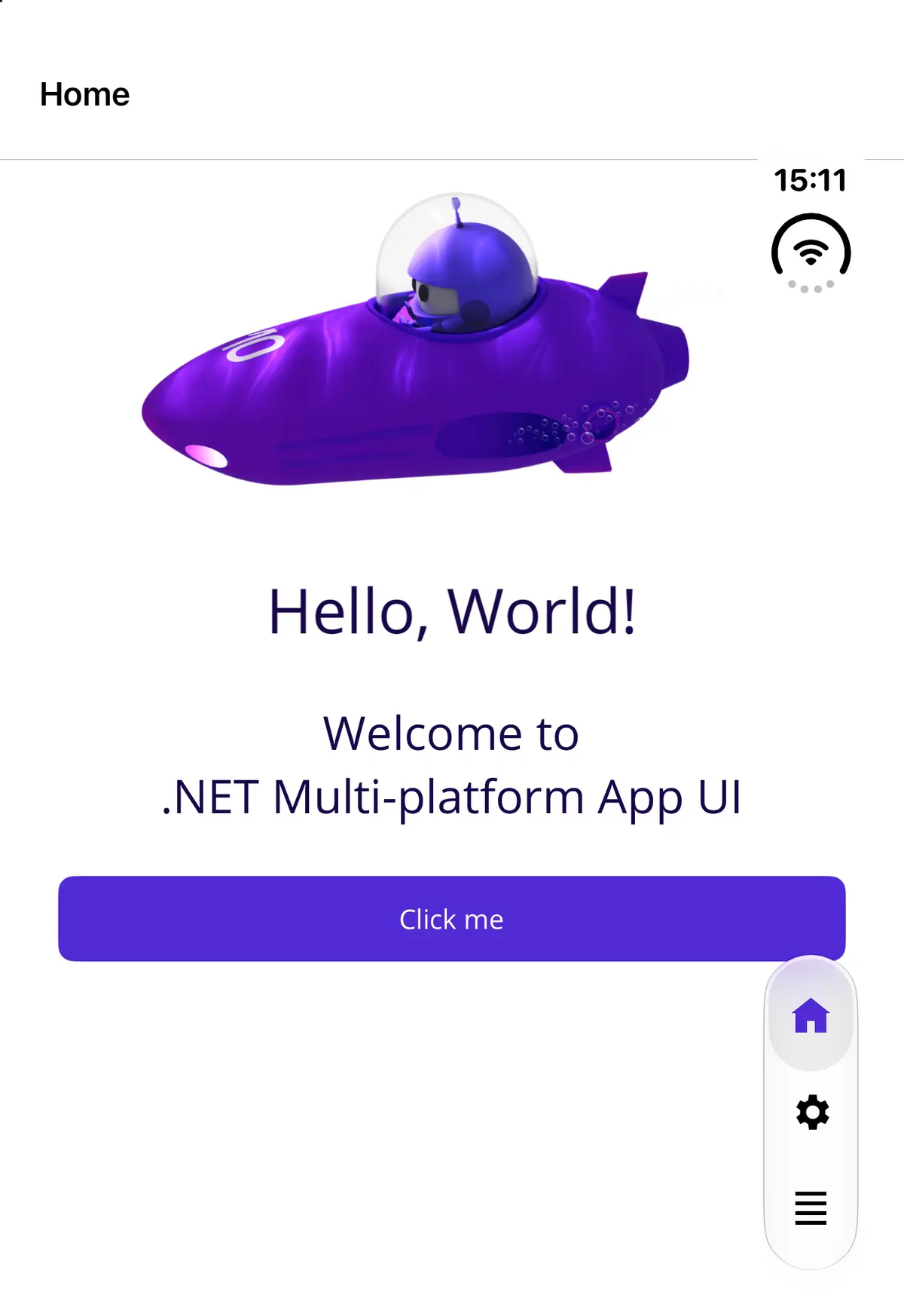
Compare the Home page with step 2. The black band is gone, and the app uses the full width of the display. The tab bar left the bottom of the screen and moved into a vertical rail on the right, right under the status bar, as icons only. Even the page title moved to the left. All of that without a single line of Duo-specific code.
One thing to keep an eye on: my content isn’t inset for the rail yet. The “Click me” button now runs all the way to the right, up against the rail. Fine on this page, but floating buttons and full-width rows deserve a careful look. Homework for part two.
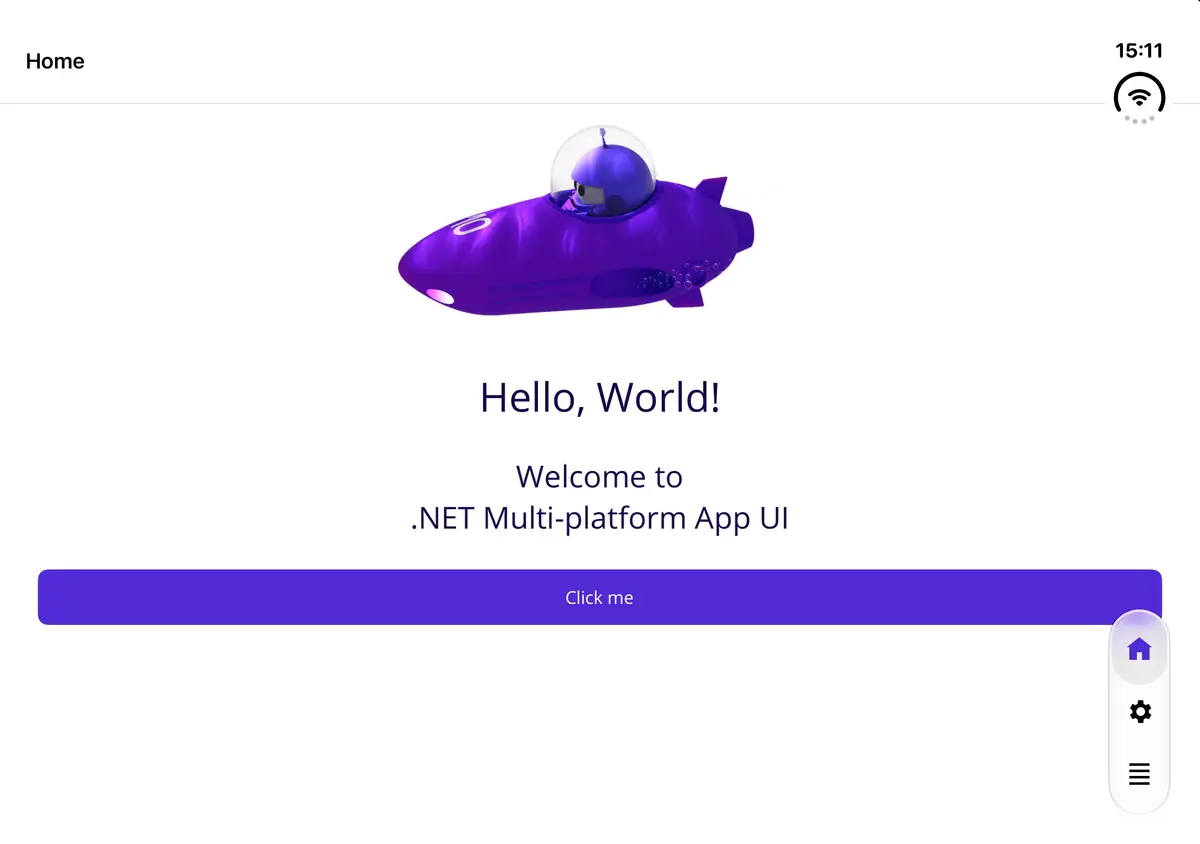
This is where iOS 27.1 does its thing. On the Duo, the system moves the tab bar and toolbar into the vertical rail when the device is folded or open in landscape, and back to classic horizontal bars when it’s open in portrait. Because a MAUI Shell TabBar is a native tab bar controller under the hood, you get that behavior from the system, without writing Duo-specific code.
Tag: scenes.
Wrap-up: what I learned
- Your existing app keeps working on the Duo. Binaries built with the old SDK launch fine. Use
xcrun simctl installto see what your users will get before you ship anything. - The crash comes from your build machine, not the phone. The moment you rebuild with Xcode 27, the scene life cycle is mandatory. On every device, not only the Duo.
- The IDE won’t tell you. Exit code 0 and a vanishing app.
- Updating MAUI isn’t enough. Even on MAUI 10.0.110, an existing project needs the scene delegate and the manifest. A package update doesn’t add those files.
- The fix is small. For a simple app: one empty class, one plist block, a few project lines. For a real app, budget time to move and test your lifecycle code.
What’s next
Getting the app to launch is step one. Making it feel at home on a foldable is step two. That means checking safe areas next to the rail, testing every pose (half open, Split View, folding with the app open),… The MAUI team is working on making its Foldable library iPhone-compatible, which should be interesting. Sounds like a part two to me!
Resources
- Get Your .NET MAUI App Ready for Xcode 27 - Gerald Versluis, .NET Blog
- .NET 10 - Xcode 27.1 support (27.1.10018) - dotnet/macios release notes
- Xcodes - install and switch between Xcode versions
- The complete PoC repository
Join the discussion